Decoders
A decoder is the hardware at the track that reads each car's transponder as it crosses the timing loop and reports the passing to Sensible Laps. The Decoders settings page is where you add, configure and remove them.
Plugin-based decoders
Decoder support is a plugin system. Each supported decoder is a plugin
stored in the Decoders folder under the install path (default
%ProgramFiles%\Sensible Laps\Decoders), and which plugins are present is
determined by the features you chose during
Installation. If a decoder type you expect isn't listed
when you add one, re-run the installer and enable it.
Supported decoders
| Decoder | Use |
|---|---|
| MyLaps RC4 | MyLaps RC3/RC4 timing systems over the network (P3 protocol). The most common club decoder. |
| Serial Decoder | A decoder connected over a serial (COM) port. |
| Simulation | Not real hardware — generates fake passings so you can test the whole workflow without a decoder. See Simulation Mode. |
Adding a decoder
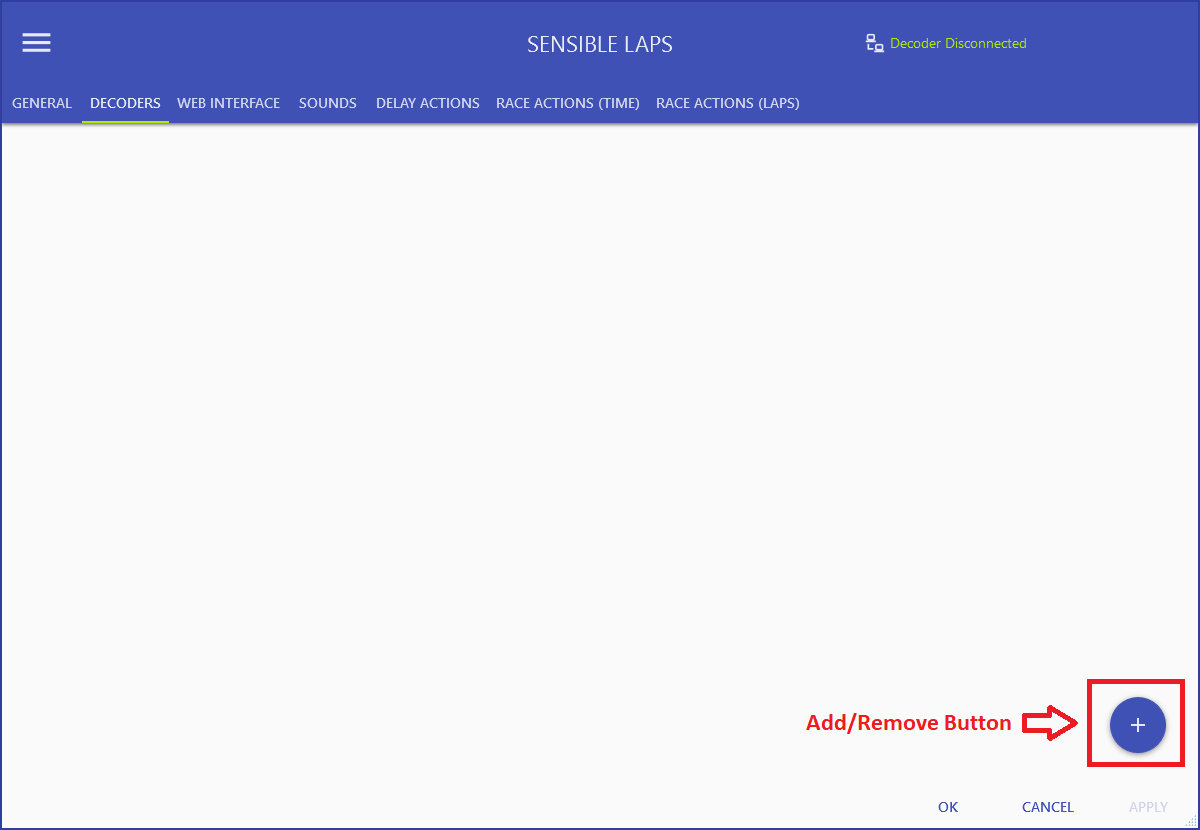
New decoders are added from the add/remove button at the lower right of the page. Hover over it and it flies out with add, remove selected and clear all.
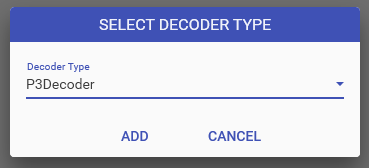
Choose add decoder, then pick the decoder type from the list.
Primary decoder and splits
The first decoder you add becomes the primary decoder, labelled Finish Line — it's the one that counts laps. Any further decoders are treated as lap splits in the order you add them, letting you time sectors as well as the lap.
Configuring a decoder
Once added, click the gear icon on a decoder to open its configuration. The dialog shown depends on the decoder type.

MyLaps RC4 settings
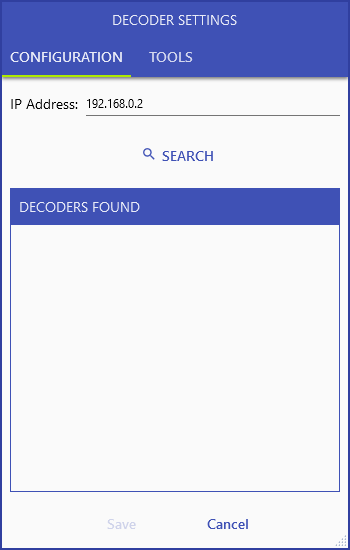
- Search scans the network for MyLaps RC3/RC4 decoders and lists any it finds in the decoders found box — pick yours from the list.
- If you already know the decoder's address, you can enter it manually instead of searching.
- Tools lets you re-send all stored passings and save them to a file — useful for recovering a race if the connection dropped mid-run.
Serial Decoder settings
Select the COM port the decoder is connected to and the baud rate for your hardware, then apply. If the port isn't listed, check the cable and any USB serial driver, then reopen the dialog.
Removing a decoder
Choose remove decoder from the flyout and the last decoder in the list is removed. To start over, use clear all.
Warning
Removing the primary (Finish Line) decoder promotes the next decoder in the list to primary. Don't change decoders mid-event unless you have to — re-add them in the same order so splits stay assigned correctly.